
How to Install IPTV on Samsung Smart TV Canada (2026)
If you'd rather skip buying a separate streaming box, learning how to install IPTV on Samsung Smart TV Canada models is one of the simplest ways to get started. Most modern Samsung TVs run on Tizen OS, which supports IPTV player apps directly — no Firestick, no Android box, just your existing television.
This guide walks through the exact setup process, what to do if your IPTV app isn't in the Samsung app store, and how to connect your IPTV subscription Canada credentials once the app is installed. If you own a different brand of TV, our general how to setup IPTV on Smart TV guide covers LG, Sony, TCL, Hisense, and Android TV models as well.
Table of Contents
How to Install IPTV on Samsung Smart TV: Step by Step
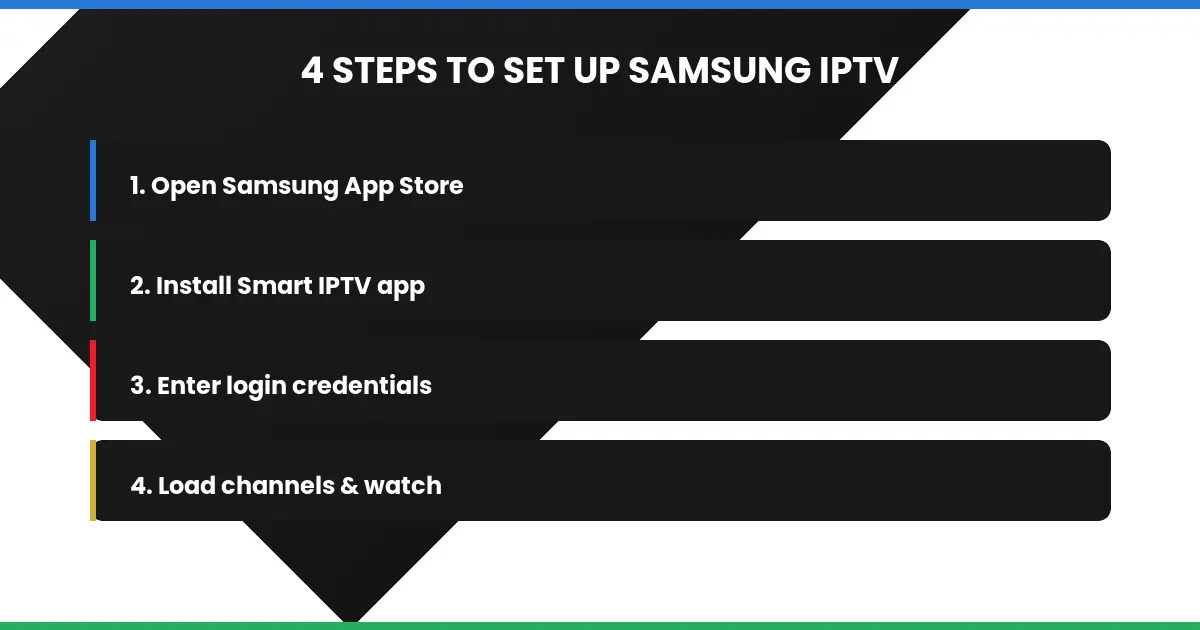
The exact steps to install IPTV on Samsung Smart TV Canada models depend slightly on your TV's Tizen OS version, but the general process stays the same across most recent Samsung models:
- Press the Home button on your remote and open the Samsung App Store (Smart Hub).
- Search for "Hot Player" (alternative: "IBO Player") and install the app.
- Open the app and note the MAC address it displays (IBO Player also shows a Device Key).
- On your phone or computer, add your playlist on the player's website — hotplayer.app (Upload List) or iboplayer.com (Manage Playlists) — using that MAC address and the playlist details (M3U URL, or Xtream if the player offers it) from your IPTV subscription Canada plan, then restart the app to load the channel list.
Once connected, your full channel lineup should load within a minute or two. If channels don't appear, double-check the credentials against what you received when signing up on the IPTV Canada homepage. That's the entire process for how to install IPTV on Samsung Smart TV models running a recent version of Tizen.
How to Install IPTV on Samsung Smart TV Canada When the App Is Missing
Not every Samsung model carries the same app catalog, especially on older Tizen versions. If you're stuck figuring out how to install IPTV on Samsung Smart TV Canada models and your preferred player app isn't listed, you have two main options:
| Option | How It Works | Best For |
|---|---|---|
| Smart IPTV + M3U editor | Register TV's MAC address on a loader site, then import playlist | Older Samsung models |
| Add external device | Connect a Firestick or Android box instead | Full app flexibility |
If neither option works smoothly on your specific model, switching to a dedicated streaming device is often faster than troubleshooting an older TV's limited app store — see our Android box vs Firestick comparison for the better fit.
Fixing Common Samsung Smart TV IPTV Issues
A few issues come up more often on Smart TVs than on dedicated streaming boxes, usually tied to the TV's weaker processor compared to purpose-built streaming hardware.
Usually a Wi-Fi issue — see our IPTV buffering fix guide for the quickest fixes.
Clear the app's cache in Smart Hub settings, or reinstall it fresh if it keeps closing unexpectedly.
Samsung Smart TV vs. a Dedicated Streaming Device
Once you know how to install IPTV on Samsung Smart TV Canada models directly, it's the simplest option if you want to avoid extra hardware entirely. That said, a dedicated streaming box generally handles multitasking and 4K streams more smoothly, since it's built specifically for that job rather than running alongside the TV's native Smart Hub interface. For heavy daily use — or if you want more flexibility with sideloaded apps — our Android box vs Firestick guide breaks down the tradeoffs in detail.
Does Samsung Smart TV Support Live Sports and EPG?
Yes — once your IPTV app is installed and connected on the TV, it supports the same features as any other device, including a full EPG program guide and live sports channels. Whether you're watching NBA, NFL, or UFC coverage, the Samsung Tizen platform handles standard IPTV streaming without issue once you've finished learning how to install IPTV on Samsung Smart TV Canada models the first time.
Samsung's Tizen operating system is purpose-built for smart TV apps, which is part of why IPTV player apps run as smoothly as they do once properly configured.
Do Older Samsung TVs Support IPTV Installation?
If you're working out how to install IPTV on Samsung Smart TV models from a few years back, the process is slightly more limited but still workable. Older Tizen versions often have a smaller app catalog, which is exactly why the Smart IPTV + MAC address method exists — it was built specifically to bring full IPTV functionality to TVs whose app stores never got an official player app.
The tradeoff is a slightly more manual setup: registering your MAC address, waiting for activation, then importing your playlist URL rather than simply logging in with a username and password. It takes a few extra minutes the first time, but once it's done, the channel experience is identical to a newer model.
Keeping Your Samsung TV's IPTV App Updated
Smart TV apps don't always update automatically the way phone apps do. It's worth checking the Samsung App Store every few months for updates to your IPTV player, since outdated versions are one of the more common causes of channels failing to load or playlists refusing to refresh. A quick manual check takes seconds and avoids troubleshooting a problem that a simple update would have already fixed — a small habit that makes the whole process of how to install IPTV on Samsung Smart TV Canada stay reliable long after the initial setup.
Ready to Set Up IPTV on Your Samsung TV?
Once your player app is installed, all that's left is connecting your subscription. Head to the IPTV subscription Canada page to grab your login credentials, or visit the IPTV Canada homepage to compare plans before signing up — that's everything you need to know about how to install IPTV on Samsung Smart TV Canada models, start to finish.