
IBO Player Setup Canada: 5 Easy Steps for Your TV (2026)
If you want a clean, fast app for your channels, IBO Player setup Canada is the quickest way to get there. IBO Player is a playlist player that loads your subscription on Smart TVs, Android boxes, Firestick and more, and it is one of the apps our Canadian customers use every day.
This guide walks through the full process from install to first channel. For plans and pricing, see our IPTV subscription Canada page.
Table of Contents
What Is IBO Player and Why Use It in Canada?
IBO Player is a media player app. It does not include channels of its own; it simply plays the playlist from your IPTV Canada subscription in a clean interface with a channel list, categories, favorites and a TV guide.
Canadian viewers like it for three reasons. It runs on most screens in the house, the layout is simple enough for the whole family, and loading a playlist does not require typing long links with a TV remote. That last point matters a lot on Samsung and LG remotes.
A correct setup also keeps zapping fast. Channels load quickly, and the app remembers your favorites between sessions.
Devices That Work With IBO Player Setup Canada
Before you start the IBO Player setup Canada process, confirm your device is supported. Most current screens are:
| Device | Supported | Notes |
|---|---|---|
| Samsung Smart TV | Yes | Install from the app store |
| LG Smart TV | Yes | Install from LG Content Store |
| Android TV / Android box | Yes | Install from Google Play |
| Amazon Firestick | Yes | Sideload with Downloader |
| Android phone or tablet | Yes | Google Play |
| Roku | Not recommended | Use another app |
If you are still choosing hardware, read our comparison of Android box vs Firestick before you buy.
What You Need Before Starting
Gather four things first so the process goes smoothly:
- An active subscription from your provider, with the playlist details they sent you
- A device connected to your home Wi-Fi or Ethernet
- A phone or computer for the activation page
- About ten minutes
No subscription yet? Try our IPTV free trial first and test everything on your own TV.
Step-by-Step IBO Player Setup Canada
Follow these steps in order. The screens differ slightly between brands, but the IBO Player setup Canada logic is identical on every device.
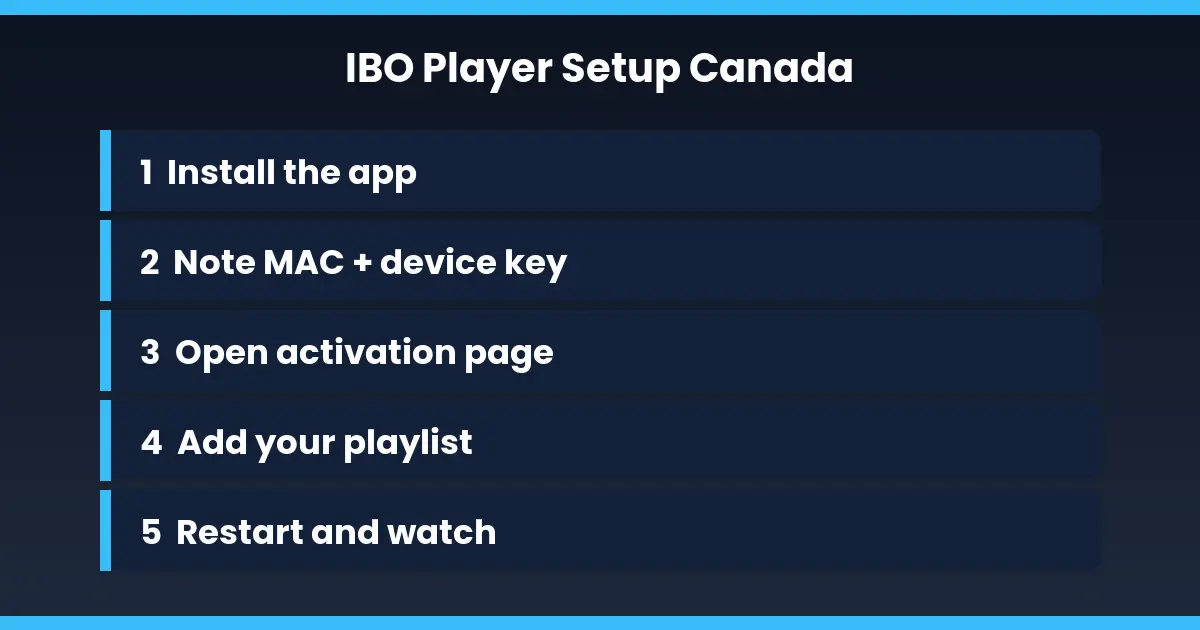
- Install the app. Search for IBO Player in your device's app store. On Firestick, use the Downloader app instead.
- Open the app. On first launch it shows a MAC address and a device key. Take a photo of both.
- Open the activation page. On your phone or computer, go to the official IBO Player website and choose the playlist option.
- Enter your details. Type the MAC address and device key, then add the playlist link or login details supplied by your provider.
- Restart the app. Close IBO Player and reopen it. Your channels and categories load within a few seconds.
Depending on the version, the app may ask for a separate activation after its trial period. That fee goes to the app developer, not to your IPTV provider.
IBO Player Setup Canada on Samsung and LG TVs
Smart TVs are where most people complete their first setup. The app is free to install and the MAC address screen is shown right on the home page.
On a Samsung, open the Apps tab, search for IBO Player and install it. On an LG, use the LG Content Store. If your TV model is older and the app is missing, our Smart TV IPTV setup guide lists other options.
Use the cabled connection if your TV has an Ethernet port. A wired link removes most Wi-Fi problems before they start.
IBO Player Setup Canada on Firestick and Android
Android boxes are the easiest: install from Google Play and continue with step two above. On a Firestick, enable apps from unknown sources, install Downloader, and add the IBO Player file. Our Firestick installation guide shows each screen in detail.
Phones and tablets work the same way. Using the app on mobile is useful for watching in the kitchen or on a trip, as long as your plan allows more than one connection. Check how many devices IPTV allows before adding a second screen.
Add Your Playlist and Organize Channels
Once the channels load, spend two minutes on organization. Open the settings, hide categories you never watch, and mark your favorite channels with the star. Sports fans can pin the channels listed in our IPTV Canada channel list to the top.
If your playlist supports a TV guide, enable it in the settings. Our IPTV EPG guide Canada article explains how the schedule loads and what to do when it stays empty.
Common Problems After Your IBO Player Setup Canada
Even a perfect setup can hit a snag. These are the usual causes:
- No channels appear: the MAC address or device key was typed wrong, or the playlist was not saved. Re-enter both carefully.
- Playlist says invalid: a space was copied at the end of the link. Delete it and save again.
- Channels freeze: check your internet speed and read our IPTV buffering fix guide.
- App not in the store: your TV may be too old. Use an Android box or Firestick instead.
Generic network concepts behind streaming are explained on Wikipedia's IPTV page if you want the technical background.
IBO Player vs Other Apps
IBO Player is not the only choice, but it is one of the easiest. Compared with TiviMate it is simpler and better suited to TVs without a remote keyboard; TiviMate offers more recording and layout options on Android. Hot Player sits between the two. Our best IPTV apps Canada comparison covers all three so you can decide before you start.
Frequently Asked Questions
How long does IBO Player setup Canada take?
Most people finish in under ten minutes. The longest part is typing the MAC address and device key on the activation page.
Do I need a VPN for IBO Player?
Not required. Some viewers use one to avoid ISP throttling. See our VPN for IPTV Canada article for pros and cons.
Can I use the same playlist on two devices?
Yes, if your plan allows multiple connections. Each device gets its own MAC address and device key, so you repeat the activation for each one.
Final Thoughts on IBO Player Setup Canada
A good IBO Player setup Canada is short, simple and repeatable. Install the app, copy the MAC address, add the playlist and restart. If you get stuck, our team replies fast, and you can see all current plans on the IPTV subscription Canada page or start from the IPTV Canada homepage.